Manipulation Tools
Upon opening Aurelia for the first time, you will be presented with the default aurelia view (the view is configurable and saved to your windows user profile on close).
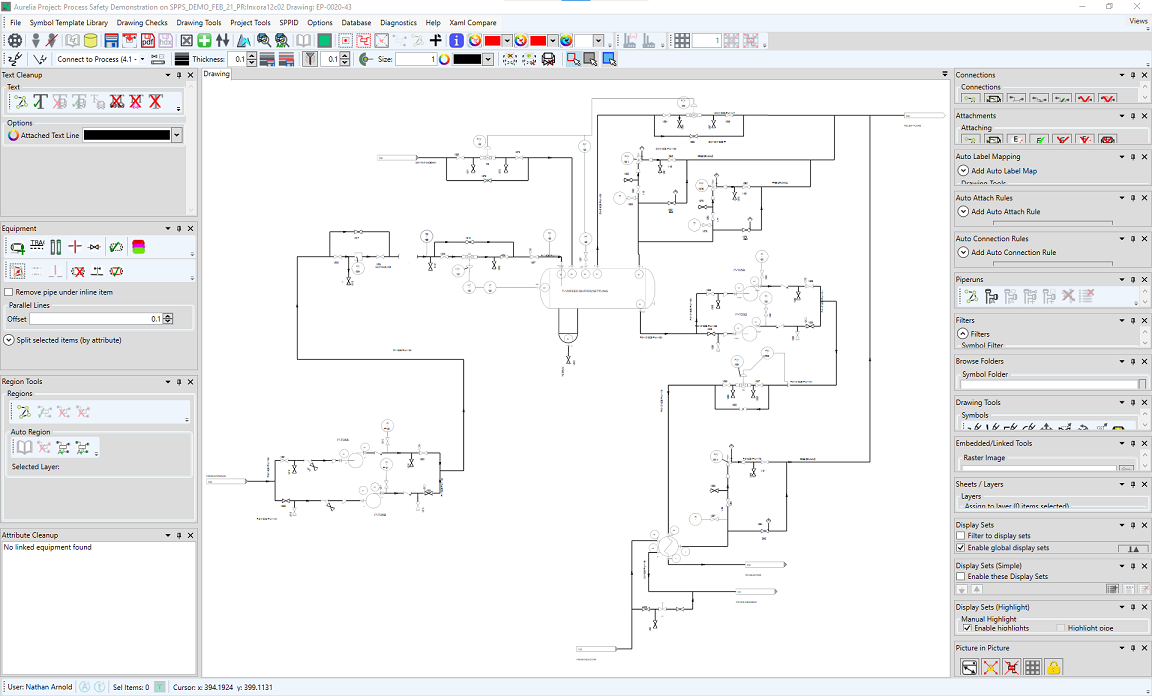
Enable or Disable the panels you want by selecting them from the views dropdown menu

Aurelia Functions
The below panels are available in Aurelia - for more information on the controls available within them, please follow the link.
| Panel | Description |
|---|---|
| Drawing | The drawing you are working on. |
| Text Cleanup | This panel contains the tools for remeditating Text on a drawing. |
| Equipment | This panel contains the tools for remeditating Graphical Objects on a drawing. |
| Region Tools | This panel contains the tools for defining and remediating the regioning on a drawing. |
| Attribute Cleanup | This panel contains the tools for defining and remediating the attributes on a drawing. |
| Connections | This panel contains the tools for defining and remediating the connections between items on a drawing. |
| Attachments | This panel contains the tools for defining and remediating the attachments between items on a drawing. |
| Auto-Label Mapping | This panel contains the tools for defining rules to automatically map labels on a drawing. |
| Auto-Attach Rules | This panel contains the tools for defining rules to automatically create attachments between items on a drawing. |
| Auto-Connection Rules | This panel contains the tools for defining rules to automatically create connections between items on a drawing. |
| Piperuns | This panel contains the tools for defining and remediating the piperuns on a drawing. |
| Filters | This panel contains the filter tools. |
| Browse Folders | This panel contains the tools for browsing to, selecting and placing symbols onto a drawing. |
| Drawing Tools | This panel contains the tools for manually drafting/remediating a drawing. |
| Embedded/Linked Tools | This panel contains the tools for adding raster images to a drawing. |
| Sheets/Layers | This panel contains the tools for viewing the different sheets/layers of a drawing. |
| Display Sets | This panel contains the tools that allow the user to apply display sets as filters/overlays on the drawing. |
| Display Sets (Simple) | This panel contains the tools for creating and managing simple display sets. |
| Display Sets (Highlight) | This panel contains the tools for creating and managing highlighting display sets. |
| Picture in Picture | This panel contains the picture-in-picture viewer, and the controls for that viewer. |
Arranging Panels
The view in Aurelia is customisable, you can move the panels around to best fit your workflow, they can be docked, tabbed floated and hidden as you require:
Clicking and dragging the panel will display a guide diamond used to dock the panels:

The panel can be snapped to any edge of the grid by dragging it onto the icons.
Clicking or hovering over a tab will expand the panel, but it will retract again after clicking off it. To fix the panel in place click the Auto-Hide  button.
The options are also available from the  menu on the panels:

- Float (while Docked) - detaches the main panel
- Dock (while floating) - Snaps the panel to its last docked position.
- Dock as Tabbed Document - Makes the panel appear as a tab on another panel:
- Auto Hide - Toggles whether the panel is fixed open or will retract after clicking off it.
- Hide - Removes the panel from the screen.
Clicking  also removes the panel. To restore the panel it must be re-enabled from the Views menu.