Replace Graphics
The Graphics Replacement manager allows you to specify the rule-based replacement of graphics. Allowing you to update all of the graphics in your project n a one-click process.

To add a graphical replacement rule, click on the  button.
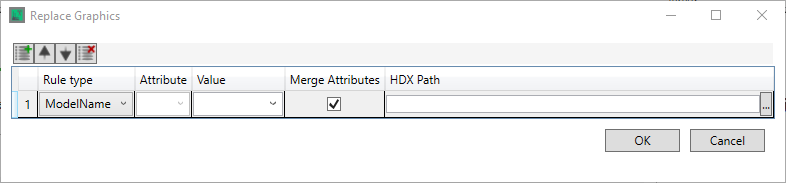
Here you first select the rule type that you wish to use, there are three rule types
- ModelName - Changes the graphic of an equipment based upon the name of the model to which it is mapped
- ModelType - Changes the graphic of an equipment based upon the type of the model to which it is mapped
- Attribute - Changes the graphic of an equipment based upon an attribute of that equipment being matched by the rule
The rule type selection affects your attribute and value options options:
ModelName/ModelType - only the "Value" column is available, in the ModelName rule type this is for the specific model name to be entered or selected from the drop down, in the ModelType rule type this is for the more general model type to be entered or selected from the drop down
Attribute - Both the "Attribute" and "Value" columns are available, you must first select the Attribute that you wish to compare against, either from the drop down or by entering it, then define the value that needs to be matched to.
The "Merge Attributes" check box enables the attributes from the orginal graphic to be merged. Unchecking it creates the replacement symbol as though it is newly placed, with no attributes other than the defaults.
The final selection is the path of the symbol graphic that you wish to replace the existing graphic with, either by entering/pasting in the file path, or selecting it via the  button
A set of Graphical Replacement rules looks like the image below

The rules are "last rule wins" so changes will be overwritten by subseqent rules.
The order in which the rules are run is set with the  buttons, and a rule is removed with the
  button.
The  button saves your chanegs and exits the window, the
  button exits without saving.