Update Property
The Update Property action is used to automatically edit property values on items during Model Configuration Rules. Values can be copied between properties and/or items, specifically defined, split up or concatenated.
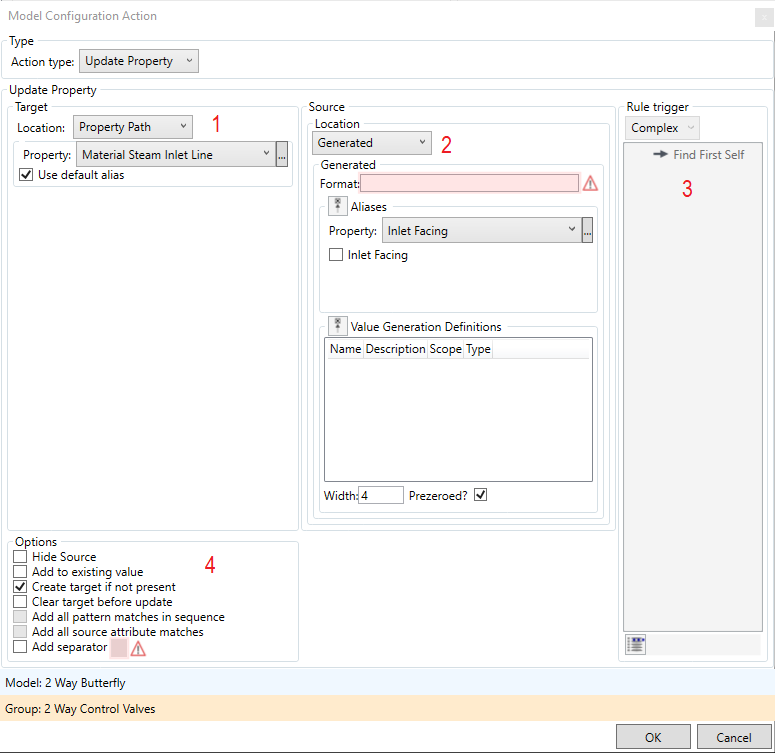
Target - This is the property to be changed. There are 3 target locations:
- Property Path - This allows you to choose a property from the list of available properties:

Select the property from the Property menu, or browse with
 . Unchecking 'Use default alias' allows a specific alias of the property to be chosen.
- System - This can be used to edit one of three system properties:

- Writeback - This can be used to write data straight to the SmartPlant source files:

Source - This determines what value is being entered. There are 5 source locations:
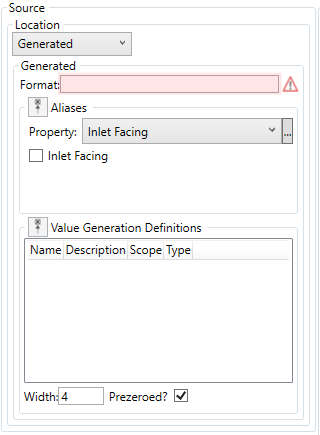
- Generated- This
- Pattern - This allows part of the source property to be broken out using RegEx:

The 'Property pattern' field is for matching to the source property name, this allows multiple properties to match. The 'Value pattern' field is for matching to the part of the value that should be copied to the target.
- Property Path - This allows you to choose a property from the list of available properties:

Select the property from the Property menu, or browse with
.- System - This allows you to choose a system property, including read-only properties:

- Text - This allows a specified value to be entered:

Trigger - The rule trigger is displayed here. If the source location (2) is Pattern, Property Path or System then the item on which the source data comes from must be indicated. This is done by selecting the rule step in which the item is found and pressing 'space'to highlight it.
Options:
- Hide Source - this hides the property value that is imported into Integrity
- Add to existing value - Selecting this will concatenate the new value onto the end of the existing value
- Create target if not present - Selecting this will create the property on the target item if it does not already have it
- Clear target before update - Selecting this will erase the existing value
- Add all pattern matches in sequence - Selecting this while using the Pattern source will add the values of every unique match found by the Value pattern
- Add all source attribute matches - Selecting this while using the Pattern source will add the values from every property that matches the Property pattern
- Add separator - Selecting this provides the option to add a separator character after the value. Enter the character into the adjactent field.
Click  to create the action.