Action View Panel
The Action View Panel allows a user to View, Filter and access Actions, Tasks and other pertinent information based upon their Permissions.
The Filter can be opened using the  Tab.
Tab.
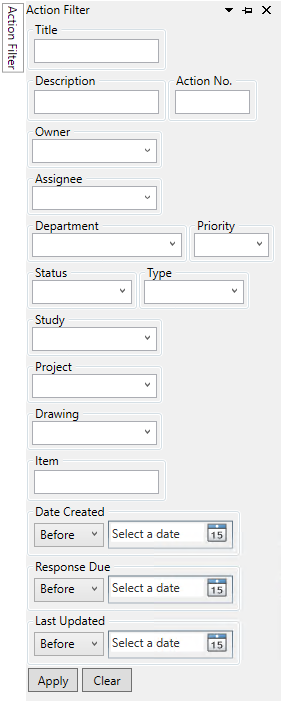
The Filter is used to focus the action list on only the actions that the filterer wants to see, based upon the following criteria
- Title – Filter the Actions panel by the Title of the action
- Description – Filter the Actions panel by the Description of the action
- Action No. – Filter the Actions panel by the Number of the action
- Owner – Filter the Actions panel by the user who ‘Owns’ the action
- Assignee – Filter the Actions panel by the user that the action is assigned to
- Deaprtment – Filter the Actions panel by the Department that the action is assigned to
- Priority – Filter the Actions panel by the priority of the action
- Status – Filter the Actions panel by the Status of the action
- Type – Filter the Actions panel by the Type of the action
- Study – Filter the Actions panel by the Study the action was created within
- Project – Filter the Actions panel by the Project the action was created within
- Drawing – Filter the Actions panel by the Drawing the action was created within
- Item – Filter the Actions panel by the Item the action was created against
- Date Filter – Filter the Actions panel by the Created, Response and Updated dates.
The  button applies the filter you have specified, and the
  button removes the specified filter.
Selecting an Action in the Actions panel will focus the Action Home onto that action, populating the Description, Response, History, Linked Items and Attachments panels with item relevant to the selected action, and making any saving of data (Messaging, Resolution, Attachments and References) apply to that action.
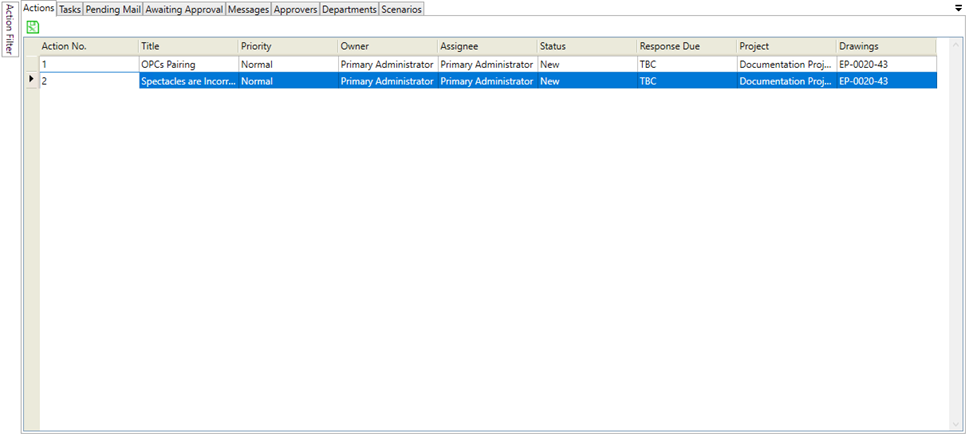
There are a series of tabs associated with the actions view panel

Selecting one of these tabs will display additional information
- Actions – Switches the action panel to display the action list – this is the default display
- Tasks – Switches the action panel to display the task list
- Pending Mail – Shows a list of all unsent emails.
- Awaiting Approval – Shows a list of all the actions that you have sent for approval that have not yet been approved.
- Messages – Displays any unanswered messages that a user has
- Approvers – Shows a list of the approvers for each department you select from the dropdown
- Departments – Shows a list of all the available departments, and their main contacts.
- Scenarios – Shows a list of all HazOp scenarios that have actions associated with them.
The  button exports the data currently visible in the main grid to an excel spreadsheet.