Adding Attachments and References
The Attachments panel is located in the bottom right corner of the Action Home, and is used to attach any documentation required to back up an assignee/approver/closers response to an action.
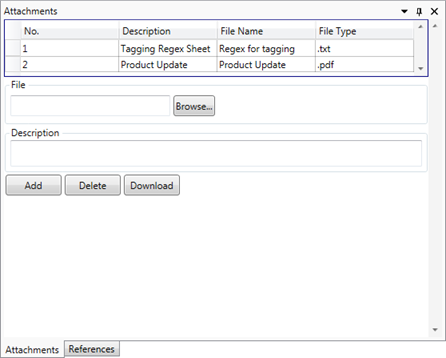
To add an attachment browse to it using the  button, enter a description into the ‘Description’ box and then click on the
  button.
Clicking on the  button (if available) will remove an attachment from the server, and the
  button will save the selected attachment to your machine.
The References tab is used to add a reference to an Action
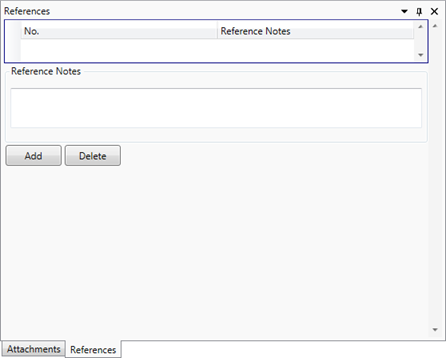
To enter a reference (for example a link to a file in a document storage system, or a link to an intranet page) simply enter the data into the ‘Reference Notes’ box and click on the button, again selecting a reference and clicking on the button (if available) will remove it from the action.
Note that links (websites, UNC paths, folder locations etc.) can be added by placing the link/path in a pair of square brackets.