Risk Cell Editor
The Risk Cell Editor is used to define the value for the Risk section of the Risk Matrix

There are several actions that can be carried out to create/edit a Risk Cell
- The Administrator Selects the Cell Keyword.
- The Short Keyword and Details are populated Automatically from the Keyword selected.
- The Short Colour and Text Colour are populated Automatically from the Keyword selected.
- Clicking the "New" button allows the Administrator to Create a new Keyword, clicking "Edit" allows them to amend an existing Keyword (they both open the same window -see below)
- Clicking the "Delete" button allows the Administrator to Delete the currently selected Keyword
The Editor is Shown Below
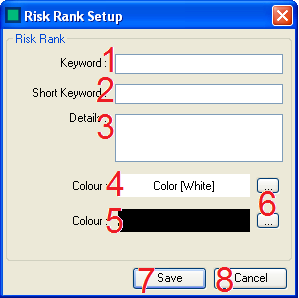
There are Several Stages to Create a Risk Rank:
- The Keyword - here the Administrator Enters the Risk Rank Keyword.
- The Short Keyword - here the Administrator Enters the Risk Rank Short Keyword.
- The Detail - here the Administrator Enters any additional details associated with the Risk Rank.
- The Cell Colour Display - this displays the colour of the Cell
- The Cell Text Colour Display - this displays the colour of the Cell Text
- The Colour Selection button, clicking this allows the administrator to define the Cell Colour and Cell Text Colour
- The Administrator can Save the Department Using the Save button.
- The Administrator can Cancel saving the Department/Abandon any changes made to an existing Department Using the Cancel button.