Risk
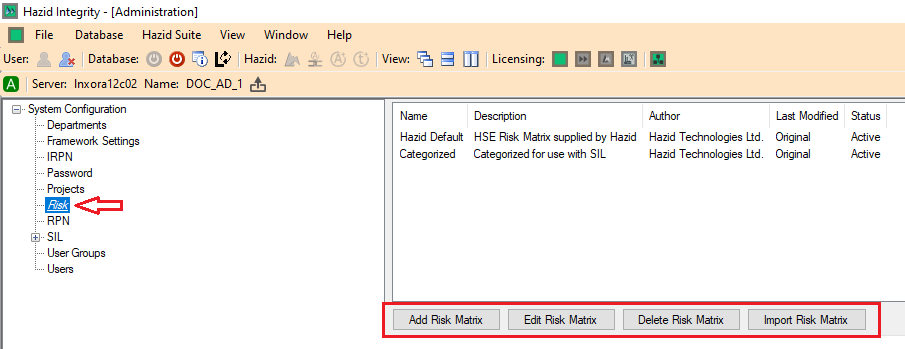
Risk Matrices are used to determine the Risk Ranking of Cause-Consequences within the HAZID Framework Process Safety Product and are created by clicking on the  button, this opens the Risk Matrix Setup Menu. Selecting a Risk Matrix and clicking on the
  button will open the Risk Matrix Menu for the selected Matrix. Note that a previously created Risk Matrix has been used for the purposes of this guide.
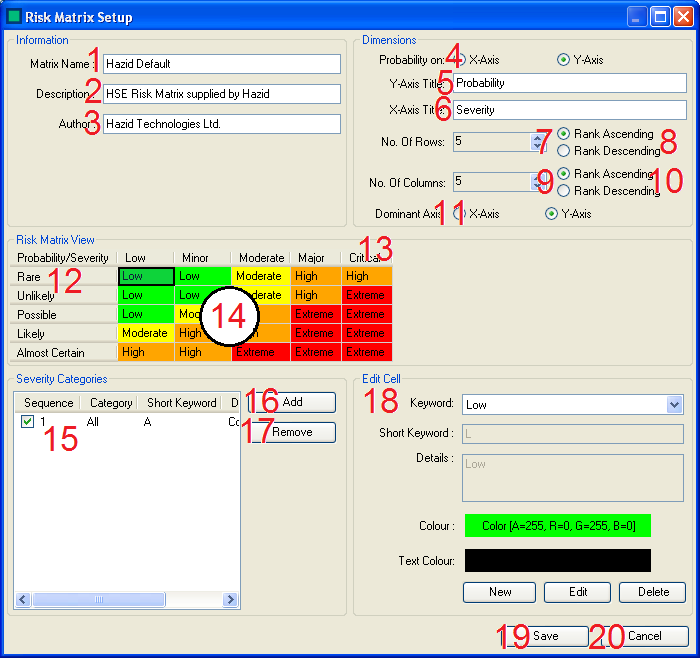
There are several actions that can be carried out to create/edit a Risk Matrix:
- The Administrator enters the Name of the Risk Matrix here.
- The Administrator enters the Description for the Risk Matrix here. (If required)
- The Administrator enters the Author for the Risk Matrix here. (If required)
- The Administrator sets whether the probability should be on the X-Axis or Y-Axis using these Radio Buttons.
- The Administrator enters the Title for the Y-Axis here
- The Administrator enters the Title for the X-Axis here
- The Administrator sets the Number of Rows in the Risk Matrix here.
- The Administrator sets whether the Y-Axis should be Ranked Ascending (From the Origin) or Descending (From the Origin) here.
- The Administrator sets the Number of Columns in the Risk Matrix here.
- The Administrator sets whether the X-Axis should be Ranked Ascending (Left to Right) or Descending (Right to Left) here.
- The Administrator sets whether the Dominant Axis should be the X-Axis or Y-Axis using these Radio Buttons.
- The Row Headings, clicking one of these allows the Administrator to Edit the Row Heading Data in the Edit Cell Panel (18)
- The Column Headings, clicking one of these allows the Administrator to Edit the Column Heading Data in the Edit Cell Panel (18)
- The Risk Rankings, clicking one of these allows the Administrator to Edit the Risk Ranking Data in the Edit Cell Panel (18)
- The Severity Category List, this displays all the Severity Categories available in the Risk Matrix, these can be associated/disassociated with the selected Cell using the Checkbox.
- The "Add" button for Severity Categories, clicking this allows the Administrator to Add Severity Categories in the Add Risk Category Menu
- The "Remove" button for Severity Categories, clicking this allows the Administrator to Remove Severity Categories.
- The Risk Matrix Cell Editor, this panel allows the Administrator to Edit the Data Present in items 12, 13 and 14, there are 3 different data types
- Probability Data - This is the detailed data about the probabilities and is item 12 or 13, dependent on graph orientation (4)
- Severity Data - This is the detailed data about the severities and is item 12 or 13, dependent on graph orientation (4)
- Risk Ranking Data - This is the detailed data about the Risk Rankings and is item 14.
- The Administrator can Save the Risk Matrix Using the Save button.
- The Administrator can Cancel saving the Risk Matrix/Abandon any changes made to an existing Risk Matrix Using the Cancel button.
The  button is used to quickly delete a Risk Matrix. However, deleted Risk Matrices are not removed from the database, and can be restored by selecting them and clicking on the
  button.
The  button allows the Administrator to import a Risk Matrix from an existing Hazop study.