Rule Results
Rule results can be viewed in detail through the Data Editor, where they may also be manually overriden. When the Rule Filter is active, the Rule Results panel gives a step-by-step breakdown of the rule result.
When an item is selected the rule results breakdown is displayed:
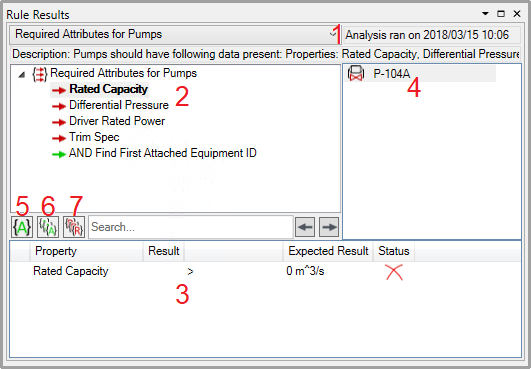
- Rule/Title Selection - This menu displays the title of the rule, and allows other rules to be selected if multiple rules are filtered to.
- Rule Steps - This panel displays each step of the rule. Steps with a green arrow passed while steps with a red arrow failed. Selecting a rule step gives further information:
- Constraint - This displays the property checks performed in the selected rule step. The value found on the item is displayed along with the value it is being compared to Constraints that pass are marked with
 and those that fail are marked with
- Found Items - Items found during the selected rule step are listed here. Those that pass the rule step or subsequent rule steps are marked with a green symbol while those that fail are marked with red. Selecting an item from the list displays the results of the constraint on that item in (3). These items will also be displayed in Linked Data while the rule filter is active.
- Override Results - This option allows the rule result to be manually overriden. Passed items can be rejected and failed items can be accepted. Clicking this opens the window:
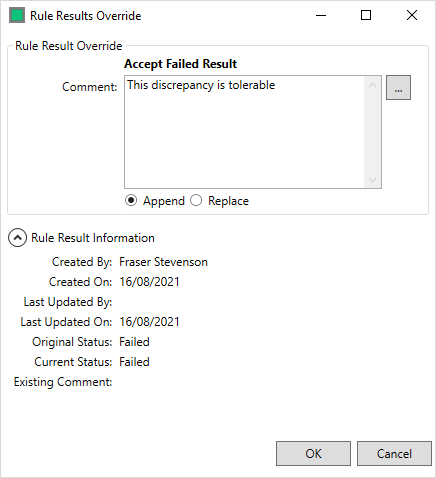
A comment may be entered explaining the decision. Selecting 'Append' adds this to any existing comment while 'Replace' overwrites the existing comment. Under 'Rule Result Information' the rule history is displayed. Click 'OK' to amend the result
- Accept All - This button allows all failed rules on the current item to be accepted.
- Reject All - This button allows all passed rules on the current item to be rejected.