Hazid Hub
Introduction
The Integrity Hub is the main user interface through which all applications of Hazid Integrity are accessed, and project information is displayed.
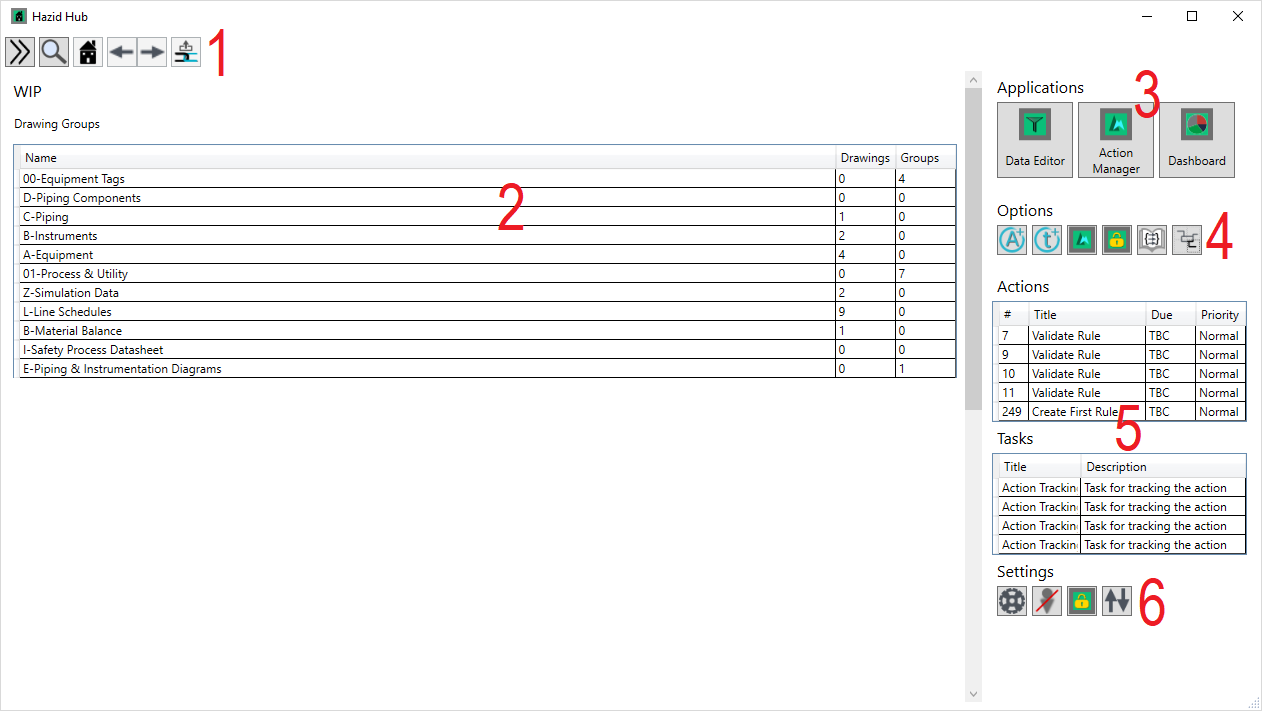
1. Project Navigation
To navigate between project documents via the Hub, use the controls in the top left corner:

 Toggle Project Tree
 Open Search
 Home
Home
 Back/Forward
 Go To Selected
2. Main Overview Window
2a. Drawing Overview
When a Drawing is selected in the Project Tree, the Drawing Overview is displayed:
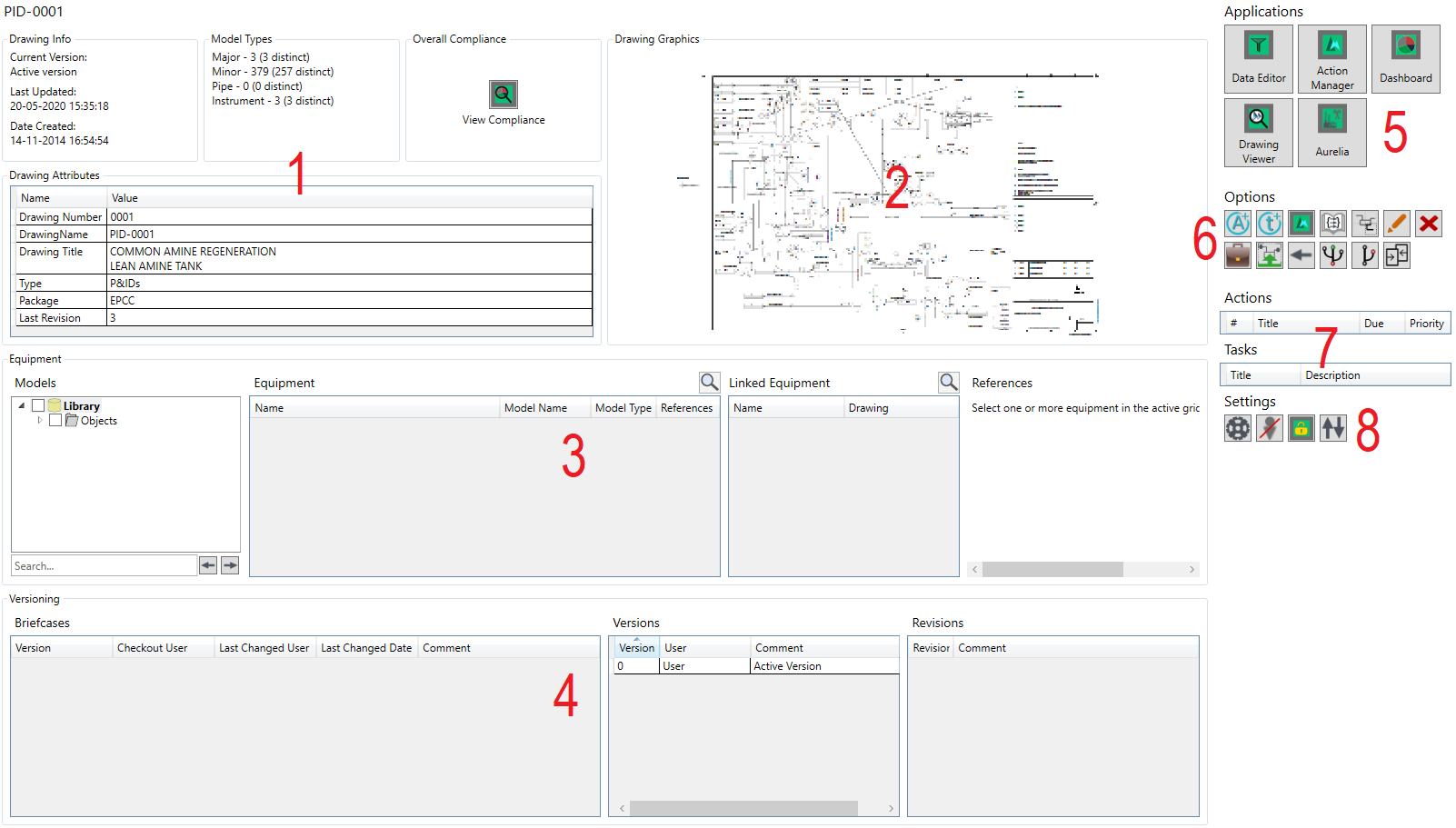
- Drawing Summary
- Drawing Info - displays the version number and date
- Model Types - displays the total number of mapped items in the drawing by model type
- Overall Compliance - displays rule result statistics for the drawing
- Drawing Attributes - other drawing information
- Drawing Graphics - displays a thumbnail of the drawing
- Equipment - provides a list of items in the drawing
- Versioning - Lists the briefcases, versions and revisions of the drawing
- Applications - Lists the available Applications the drawing can be opened with
- Options - Lists the Option buttons
- Action & Tasks - Lists the user's visible Actions and Tasks on items within the drawing group
- Settings - Lists the Hub Settings
2b. Group Overview
When a Drawing Group is selected in the Project Tree, the Group Overview is displayed:
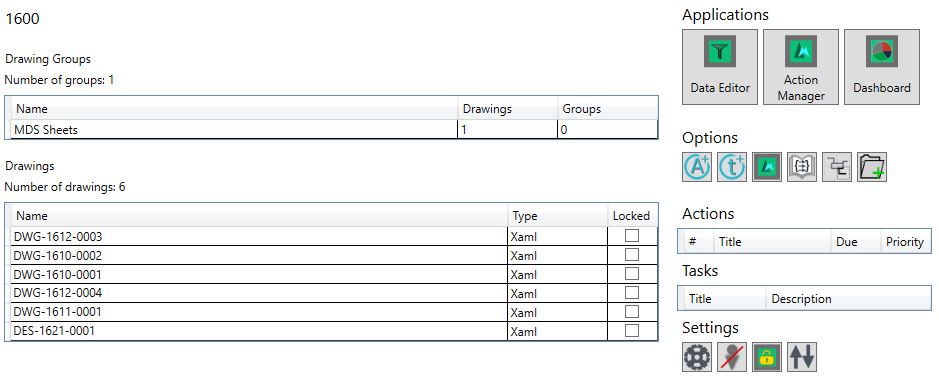
Drawing Groups - Lists the subgroups within the group, and the number of drawings and subgroups within them
Drawings - Lists the drawings within the group, the document type, and indicates if the drawings are locked by a user
Applications - Lists the available Applications the drawing group can be opened with
Options - Lists the Option buttons
Actions - Lists the user's visible Actions on items within the drawing group, including the Due Date and Priority
Tasks - Lists the user's visible Tasks on items within the drawing group
Settings - Lists the Hub Settings
3. Applications
The different applications of Hazid Integrity can be launched via the Hub when a drawing or drawing group is selected:
 Data Editor - Opens the drawing or group in Data Editor.
 Action Manager - Opens Action Manager filtered to Actions on items within the drawing or group.
 Dashboard - Opens the Dashboard for the drawing or group
 Drawing Viewer - Opens the drawing in Drawing Viewer
 Aurelia - Opens the drawing in Aurelia
4. Options
The Options contain actions that can be done on a Drawing or Group selected in Integrity Hub. Different options are available depending on whether a drawing or group is selected:
Group Options

 Create Action - Opens the Create Action window to create an action linked to the selected group.
 Create Task - Opens the Create Task window to create a task linked to the selected group
 Linked Actions - Opens Action Manager filtered to show Actions linked to the selected group
 Run Rules - Opens the Rule Analysis window to run Engineering Integrity rules on the selected group
 Multi-Batch - Opens the Multi Batch window for running Icon Mapping and Model Config rules on multiple drawings simultaneously
 Create New Document - Opens the Create New Document window to create a new document within the group
Drawing Options
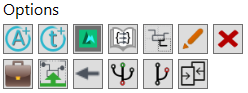
Create Action - Opens the Create Action window to create an action linked to the selected drawing
Create Task - Opens the Create Task window to create a task linked to the selected drawing
Linked Actions - Opens Action Manager filtered to show Actions linked to the selected drawing
Run Rules - Opens the Rule Analysis window to run Engineering Integrity rules on the selected drawing
Multi-Batch - Opens the Multi Batch window for running Icon Mapping and Model Config rules on multiple drawings simultaneously
 Rename Drawing - Provides the option to change the drawing name and description
 Delete Drawing - Deletes the drawing
 Briefcase Options - Opens the Briefcase Manager for the drawing
 Open Version - Opens the selected drawing version in Drawing Viewer
 Rollback Version - Opens the Version History window, allowing the selection of previous versions
 Create Version - Provides the option to create a new version of the selected drawing
 Create Revision - Provides the option to create a new revision of the selected drawing
 Compare Drawings - Opens the Drawing Comparison window to check for differences between drawing versions
5. Actions & Tasks
Lists open actions and tasks in the project
6. Settings
The Hub Settings are accessible from any location in the Hub.

 Edit Database Connections - Opens the Database Connections window to switch between projects
 Login - Opens the Login window
 Logout - Logs out of the system
 Rescue Locks - Releases any locked drawings left by the user
 Refresh Project - Refresh the project with any changes made by other users