Hub Quick Search
The Hazid Quick Search is used to find items within an entire project in the Hub.
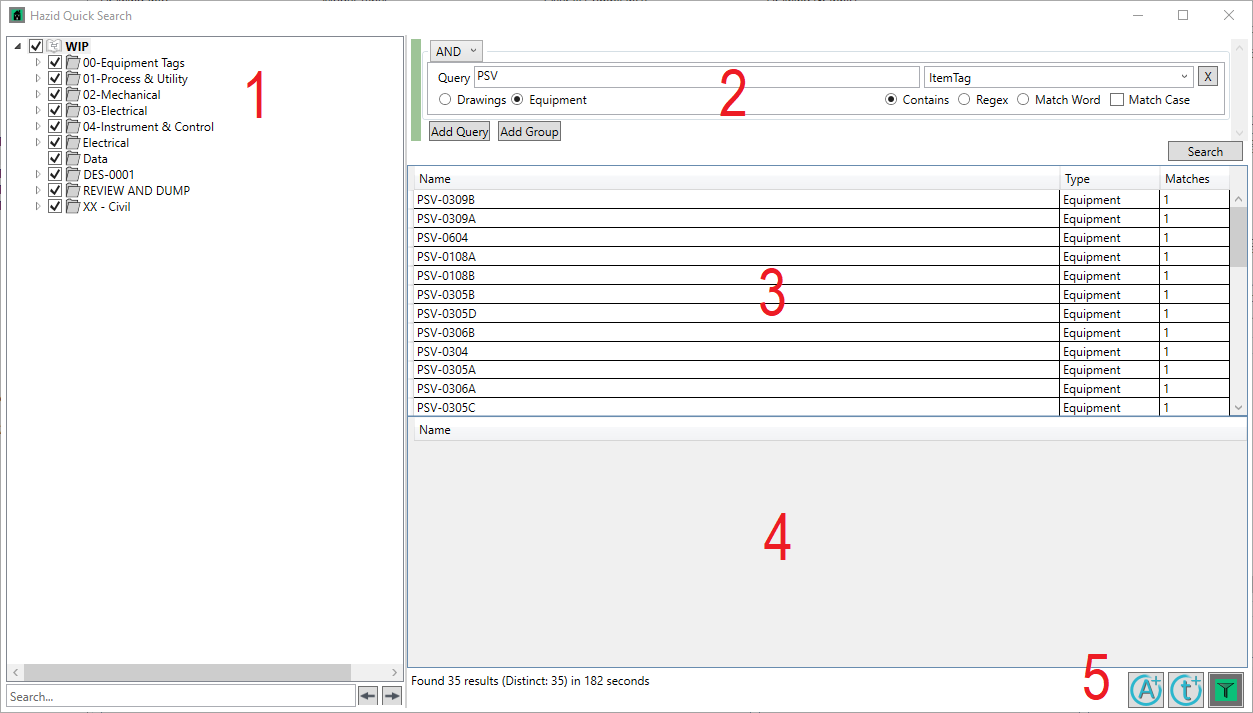
- Project Tree - This defines the scope of the search. Select which drawings and groups to look through.
- Query - This is where the search parameters are defined:

A. This is where the value being searched for is entered
B. Select whether drawings or equipment items are being searched for
C. Select which tag property is used for the search
D. Search options:
- Contains - will give results where the string contains the entered value
- Regex - will interpret the entered value as a RegEx pattern and match accordingly
- Match Word - will give results only when the entire string matches the entered value
- Match Case - if selected, will make the search case-sensitive
E. Add Query - This button can be used to add multiple search terms:
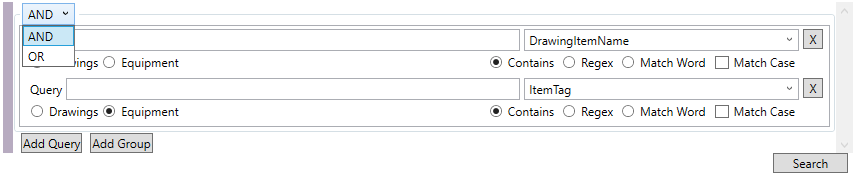
The AND/OR menu determines whether results should meet all or any of the criteria. The  button removes the query.
F. Add Group - This button allows queries to be grouped for the purposes of Boolean logic
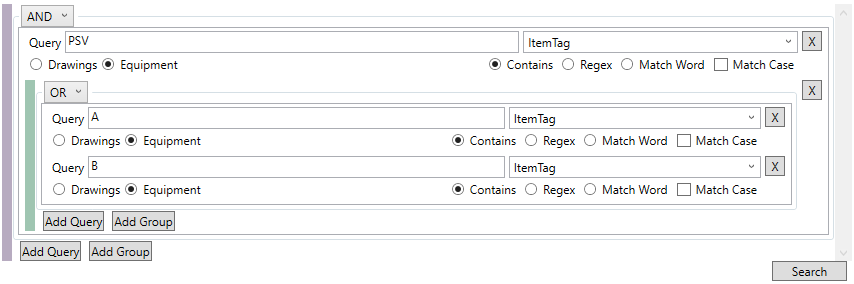
In this example the item searched for must contain PSV AND either (A OR B). Multiple terms can be nested within each other by this method.
G. Search button - clicking this will begin the search.
- Results - Items found by the search are listed here.
- Drawings - When an item is selected in the Results list, the drawings it is on are listed here.
- Actions
 Create Action - Create an Action on an item selected from the search results.
 Create Task - Create a Task on the selected item.
 Data Editor - Opens the selected item in Data Editor