SAFE Rules
Safety Analysis Functional Evaluation (SAFE) charts are used to display control logic information for a P&ID. The ability to create rules to automatically generate standard safe charts based upon the instrumentation that should be present for controlling your equipment is present in Integrity Rule Builder. When creating the rules you must fill in the details in the Rule Creation form
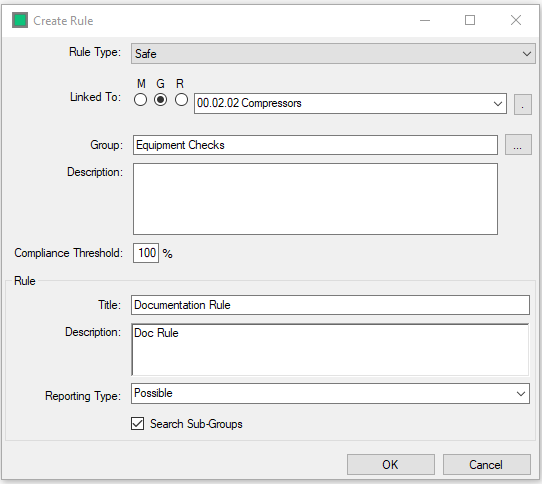
All Fields are Mandatory in the Rule Creation form.
- Rule Type - Select the Custom Rule Type that you wish the rule to be created under. If creating a rule from selecting a Custom Rule type it is automatically entered.
- Linked to - The Model Group or Hazid Integrity Knowledge Model that the Rule is linked to. You may select the linked group or model from the drop down list. M filters for models Only. G filters for Group only. You may choose the model or group from the model tree by using the
 icon.
icon. - Group - The Rule Group you wish the Rule to be stored under. To create a new rule group while creating the rule type, enter the name into the box. When creating a new Rule Group this way you will be prompted to add a comment. Use the Browse button to select a rule group already created.
- Compliance Threshold - The percentage of rules within the group that need to pass in order for the rule group to be considered compliant for the dashboard report
- Title - A short title for the Rule
- Description - A description of the purpose of the rule
- Reporting Type - Hazid Integrity will report the results in two ways (The reporting type can be toggled on or off in the Rule Analysis results).
- Mandatory - The rule result will always be reported in the Rule Analysis results
- Possible - The Rule result will only be reported in the Rule Analysis results if failed
- Search Sub-Groups - By Default Rules entered at a Model Group Level will only run on those Model Items directly bellow them. Selecting to Search Sb-Groups allows the rules to be run on all children of the Model Group.
Select  to continue creating the rule and move to the SAFE Rule Details
Select  to stop the rule creation.