Permissions
The interface for Amending the permissions is the same no matter what level the Administrator has accessed it from, although it is important to remember that permissions will apply to multiple users if they are assigned at the Deaprtment or user Group levels.
- Department Permissions - Apply the selcted permissions to all of the users in the Department
- User Group Permissions - Apply the selcted permissions to all of the users in the User Group
- User Permissions - Apply the selcted permissions to the selected User only.

There are three sections to the Permissions:
- The Permission List - The Administrator can set permissions for the four main areas of Framework here
- Admin - The Administrator can set permissions for soft Administration modules here
- Hazid Integrity - The Administrator can set permissions for the Framework here
- Workflow Integrity - The Administrator can set permissions for the Workflow Manager here
- Engineering Integrity - The Administrator can set permissions for the Engineering Integrity tools here
- Safety Integrity - The Administrator can set permissions for the Process Safety tools here
- Aurelia - The Administrator can set permissions for the Aurelia tools here
- The Administrator can click the 'Select All' button to assign all the permissons to the Department/User Group/User being configured
- The Administrator can click the 'Clear All' button to clear all currently assigned permissons to the Department/User Group/User being configured
- The Administrator can click the 'Copy Permissions' button to copy permissions from another Department/User Group to the Department/User Group/User being configured
Copying Permissions
Permissions can be copied into a Department/User Grup/User from an pre-existing Department or User Group, to do this, click on the  button to open the Copy Permissions window.
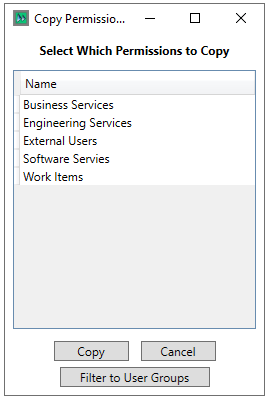
You Select the Department/User Group you wish to copy from by left clicking it in the list and clicking the  button
Clicking the  /
/  button switches between Departments and User Groups to copy permissions from.
Clicking the  button exits without copying permissions.