Departments
To launch Department Managment, the user can right click on System Administrator or by clicking on Add/Edit Department button on the bottom of the screen.
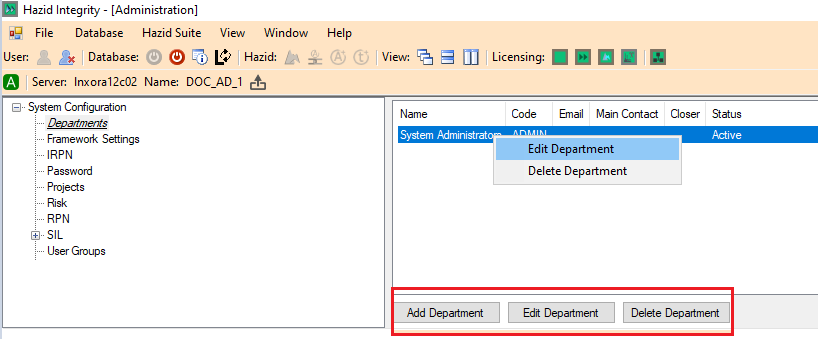
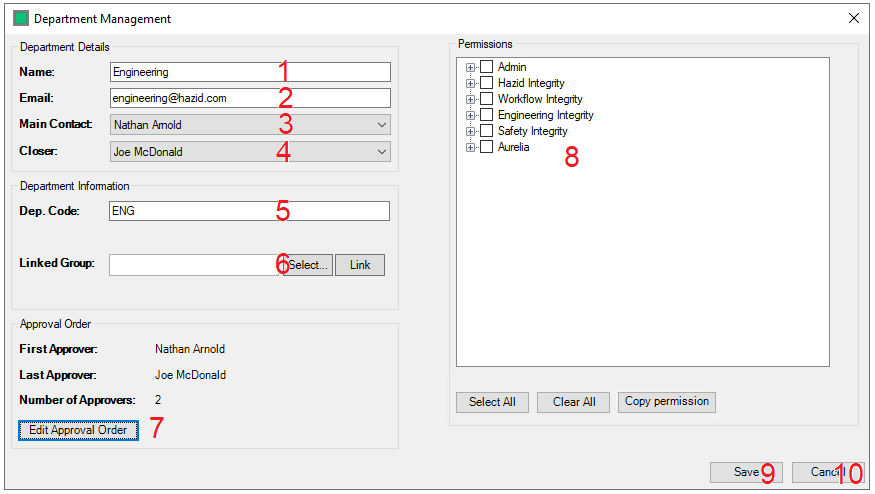
The interface for Creating a Department is accessed by clicking on the  button. This Opens the Department Management Window (note that the
  button opens the same window)
- The Administrator enters the Name of the Department here.
- The Administrator enters the Email (or department mailbox) for the overall contact for the department here.
- The Administrator selects the User (from the drop down list of users within the department) that is the main contact for the department here.
- The Administrator selects the User (from the drop down list of users within the department) that is the closer for the department here.
- The Administrator enters the short Department Code for the department here.
- The Administrator can Define a Windows User Group that is linked to the department for the purposes of conferring permissions to all members of the Windows User group in a streamlined way.
- The Administrator can Edit the Approval Order using the Edit Approval Order button.
- The Administrator can Assign Permissions for every user in the Department here.
- The Administrator can Save the Department Using the Save button.
- The Administrator can Cancel saving the Department/Abandon any changes made to an existing Department Using the Cancel button.
Approval Order
The interface for Amending the users who are responsible for approving actions generated in the HAZID Framework is accessed by clicking on the  button, which can be found under Department Managment Window.
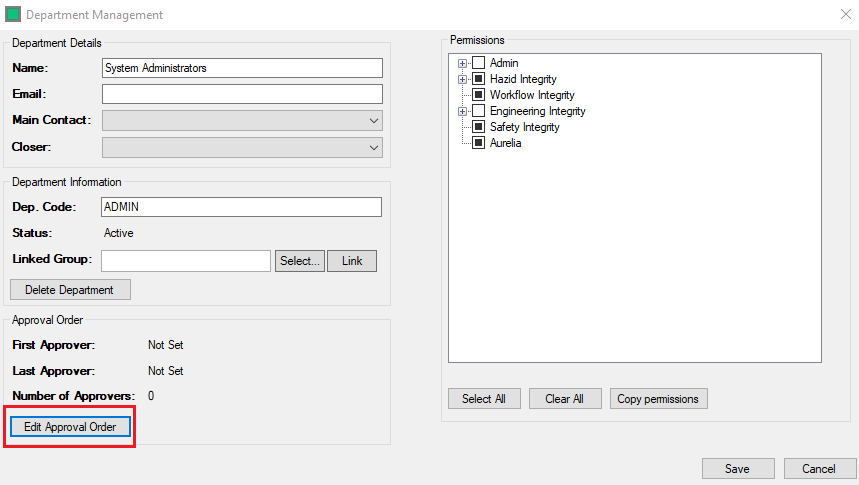
This Opens the Setup Action Approval Order Window
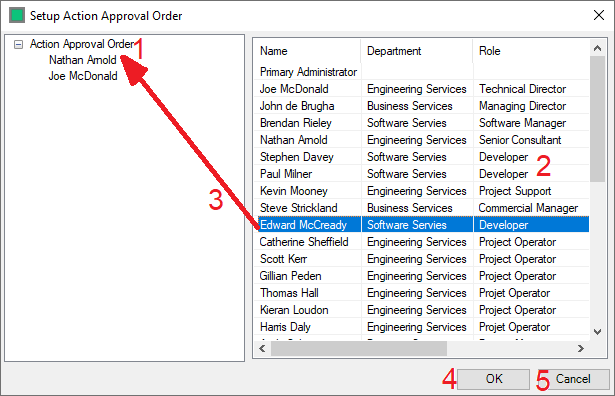
There are several sections of the Setup Action Approval Order Window:
- The Action Approval Order - This displays the currently created Action Approval Order
- The User List, this is a list of all of the Active Users in the Hazid Framework
- The Administrator selects the User that they wish to be an approver and drags that user to the correct location in the approval chain to create an Action Approval Order.
- The Administrator can Save the Action Approval Order Using the 'Save' button under Department Managment window.
- The Administrator can Cancel saving the Action Approval Order/Abandon any changes made to an existing Action Approval Order Using the 'Cancel' button