Drawing Access Permissions
The Drawing Access Permissions are used to govern which drawings Users/User Groups/Departments have access to.
For information on Users/User Groups/Departments, please visit the Administration section of this help
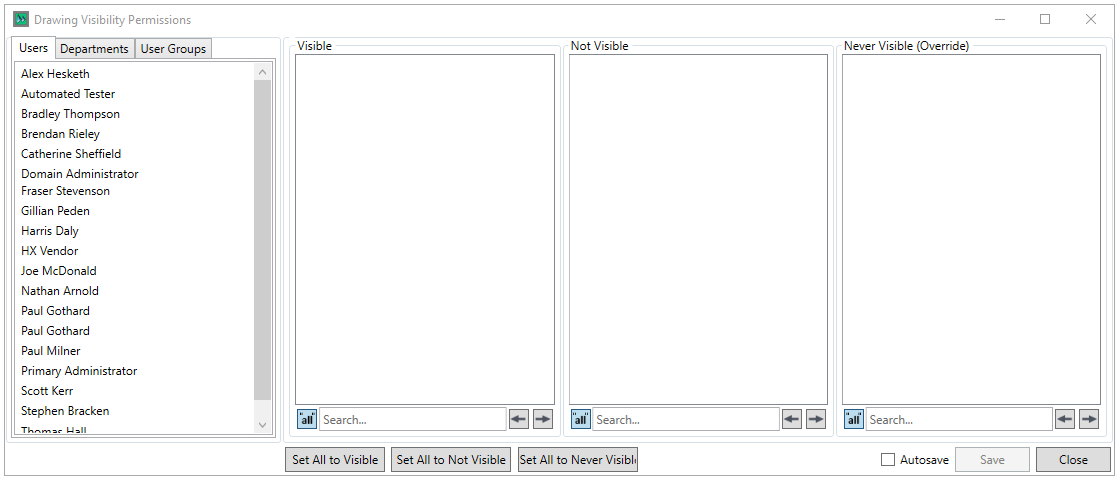
Note that the process for configuring Drawing Access Permissions is the same for Users, Departments and User Groups, allowing you to confer permissions to access drawings in as broad-brush or granualar way as you require.
Upon selecting a User/Department/User Group, the drawing list is populated
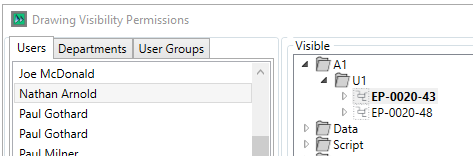
Initally all properties are in "Visible" so all User/User Group/Departments can access the drawing.
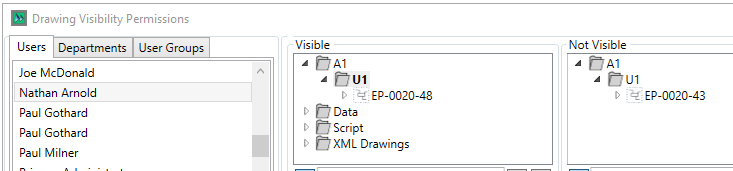
There are three Internal Permissions Levels - "Visible", "Not Visible" and "Never Visible" - Visible means the drawing is Visible, Not Visible means it is not visible in the main tree, and Never Visible means the drawing is not visible anywhere in the system to that user/department/user group.
To confer a permission, simply left click the property/group that you wish to add permissions to and drag it to either the "View"or Edit "Panel"
There are 3 buttons at the base of the Permissions panel, that have the following effects
- Set All to Visible - Sets all drawings to visible for the selected user/user group/department
- Set All to Not Visible - Sets all drawings to not visible for the selected user/user group/department
- Set All to Never Visible - Sets all drawings to never visible for the selected user/user group/department
In the bottom right of the window are the Save/Close options

Checking the "Autosave" checkbox will save the form continuously as you make changes, the  button saves your work and the
  button closes the form