Rule Editor
The Rule Editor is used to view and create rules in the Engineering Integrity system. There are three categories of rule
- SAFE (Safety Analysis and Functional Evaluation) rules – these rules check the safety devices to make sure that they carry out the correct action on the correct item in the event of an emergency.
- Safety Analysis Checklists – these rules form checklists for engineers use to again ensure that the correct safety equipment is present in the correct place on the P&IDs in a project, the checklists also contain rules to ensure that the design parameters of the safety equipment present will enable the equipment to function as desired.
- Text Only – These rules can be applied to items on the drawing and hold checklists of specific rules that you may not necessarily be able to determine from the drawings data or topological data alone.
The rule editor allows you to create, copy and manage all of the rules within your project across all of the different custom rule types and Rule Groups.
All Rules are Viewed, Created, Edited and Copied through the Rule Editor form. The toolbar allows you to filter and quickly add new rules.
 - Refresh - Refreshes the Rule Editor Data with the Database
 - Create Rule - Creates a Safety Analysis Checklist Type Rule
 - Create Safe Rule - Creates a SAFE type Rule
 - Create Text Only Rule - Creates a Text Only Rule
 - Model Filter - Filters to View all Models or only those with rules associated with them
 - Rule Type Filter - Filters to view the Rules associated with Custom Rule Types
 - Search - Searches through the Rule Summary Panel
 - Search Results - Advances your search results
The rules on your Model Groups or Hazid Knowledge Models are accessed through the Model tree. This displays All the Models and Groups depending on your filter items within the toolbar.

Browse the Model Tree until you reach your desired Model Group or Model. Right clicking gives you a menu which allows you to do the action directly at the tree level selected.
- Create Rule - For more Information see Create Safety Analysis Rule
- Create Safe Rule - For more Information see Create SAFE Rule
- Create Text Only Rule - For more Information see Create Text Only Rule
- Copy Rule - For more Information see Copy Rule
Beneath each level of the Rule tree you select the Rule summary displays a list of all items which have rules associated with them for quick links to the items in the tree.

The Rules Details Panel displays all rules associated with the item at the level of the tree user has selected. Rules are split into the groups user has created, type is displayed visually by the icons.
 - Rule Group or Custom Rule Type
 - Rule Group with Modifier attached
 - Safety Analysis Rule
 - Safety Analysis Rule with Modifier attached
 - SAFE Rule
 - SAFE Rule with Modifier attached
 - Text Only Rule
 - Text Only Rule with Modifier attached
This allows user to view quickly the different types of rules within an item.
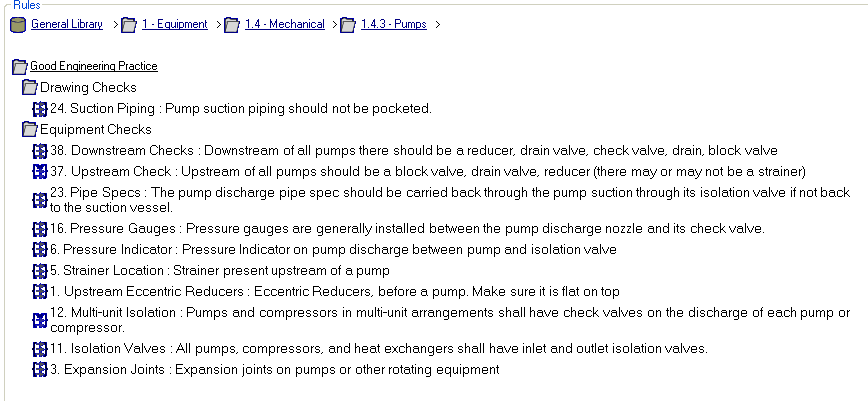
The rules list also contains breadcrumbs which allows the user to browse the rule tree by using the > icons.
Right clicking on the items within the Rule Details Panel allows a number of functions
- Edit Rule Group - For more Information see Editing the Rule Group
- Delete Rule Group - For more Information see Deleting Rule Group
- Copy Rules - For more Information see Copy Rules
- Create Rule - Will Create the Rule type of the group specified For more Information see Create Safety Analysis Rule or Create SAFE Rule
- Create Text Only Rule - For more Information see Create Text Only Rule
- Create Group Modifier - For more Information see Create Rule Items - Group Modifiers are a rule that prevents the rules within the group from running unless it passes
- Edit Rule
- Delete Rule
- View Rule
Select  to exit Rule Editor