Fluid Templates
Fluid templates are used to hold the pertinent data relating to the fluids present in the library, such as CAS number and any other data that you would usually expect to find on the MSDS of the fluid and other related documentation. To set up a template first double click the library that you have created to open the Fluid List
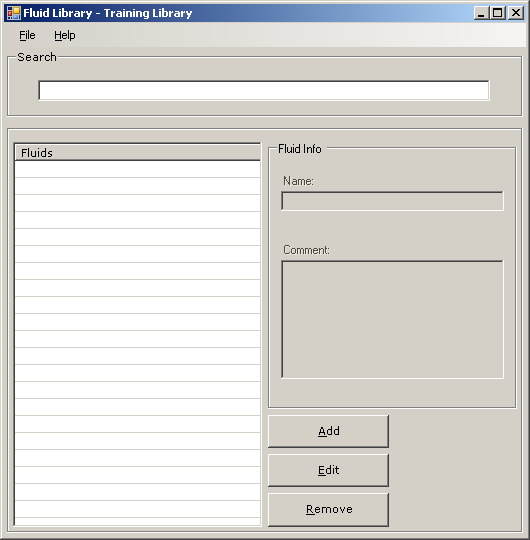
Then select ‘File->Edit Fluid Template’ to open the fluid template editor

Once the fluid template editor has opened you will be presented with the following window
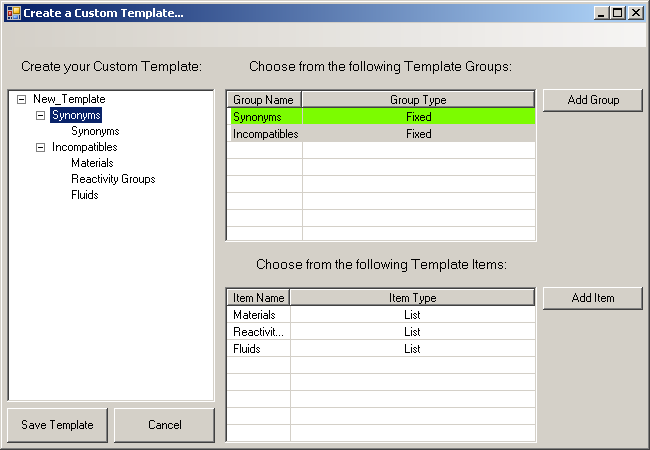
There three main actions that can be carried out here, Groups can be added to the Group List, Items can be added to groups, created groups can be added to the fluid template (note that the group items are automatically added to the template with the group, but can be removed).
To add a group to the Template Group list click the  button, this opens the group creator.

Name – Type the name that you wish the group to have into this field.
Type – This is the type of information that you wish the group to contain. There are two group types; ‘Standard’ which can contain a range of data items, and ‘List’ which can contain only list type data items.
Once you have finished creating the group, clicking  will save the group. And return you to the template creation screen.
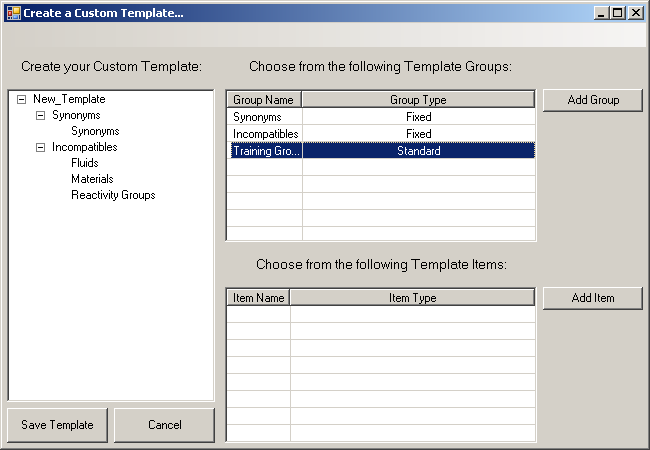
To add an item to the group that you have just created select the group and click the  button, this opens the item creator

- Name – The name that you wish the group item to have
- Comment – Any comment that you wish to add to the item
- Type – The field type that you wish the item to be, there are five item types
Once you have created your item clicking  will create the item in the template.
To build a template up after creating groups and items simply drag the groups you wish to add from the group list in the top right panel to the template tree on the left hand side. To remove an item from the tree that has been added in error, right click the item that you wish to remove and select ‘Remove Item from Tree’
