Database Connections
Overview
Hazid Integrity stores all of the plant configuration and reference files within database schema. To use any of the functions within Hazid Integrity the Hazid Framework must have an open connection to the System schema and to any of the module database schema required to do your work.
Hazid Integrity will automatically try and connect to the last database connections set up by the user on entry. To manually connect to All database schema select the database connection Icon  or use the option in Database Menu / Connect.

Hazid Integrity will close all open database connections when it is closed properly from the window or through the File Menu / Exit item. If it is required to manually disconnect All database schema select the database disconnect icon  or use the option in Database Menu / Disconnect.

Setup Databse Connections
Each client instance of Hazid Integrity can connect to multiple database schema instances required for each module that you will be using. For information on the schema types see Configuration Tool.
To edit the database connections select the Database Connections Icon  or select the option from Database Menu / Setup Connections.
The Database Connection Setup stores all of the connection data for the database users. You will not be able to connect to the schema unless you have the correct Oracle/MSSQL Client installation and can connect to the server and Administrative connection
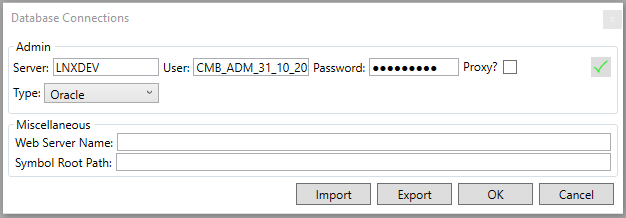
Within the connections settings System connection must always be connected to the Administrative Database where the User you are currently using resides all other connection settings are required only for the modules you require a data connection to. For more Information see Edit Database Connections.
The Miscellaneous settings are to allow your Hazid Integrity client to connect to the web server serving your Workflow Integrity and the Symbol Root Path for SPPID - simply
- enter the name/IP of the webserver
- the UNC path of the SPPID symbol root that you wish to make use of The Setup Database Connection form also allows you to import a set of database connections from a Hazid .hdb file or to export your current connections. For more Information see Import/Export Connections.
Edit Database Connections
The database connetions in the Hazid suite are governed by the administration, this is the only connection available to be user defined in the database connections
For each database connection you will require the Database Service Name where the Schema is located to be known to your Oracle Client installation and the Username and Password as created in the Configuration Tool to hand.
Each Database connection is entered or edited in the same way. For each connection the options are

- The connection type (Oracle/MSSQL).
- The database server name which the data schema resides on.
- The database username of schema as created using the Configuration Tool.
- The Password for the database user as created using the Configuration Tool.
- The Proxy connection selection checkbox - selecting this enables you to connect to a database via a pre-configured proxy user.

- The "Connect" button, clicking this will attempt to connect to the database with the connection details specified in the previous steps, if the connection is successful then a Tick, if the connection is unsucessful then a Cross is displayed, holding the cursor over the cross will display the oracle/mssql message that generated the cross

It is advisable to import a full set of connections from an hdb file, via the  button and exported via the
  button.
Import/Export Database
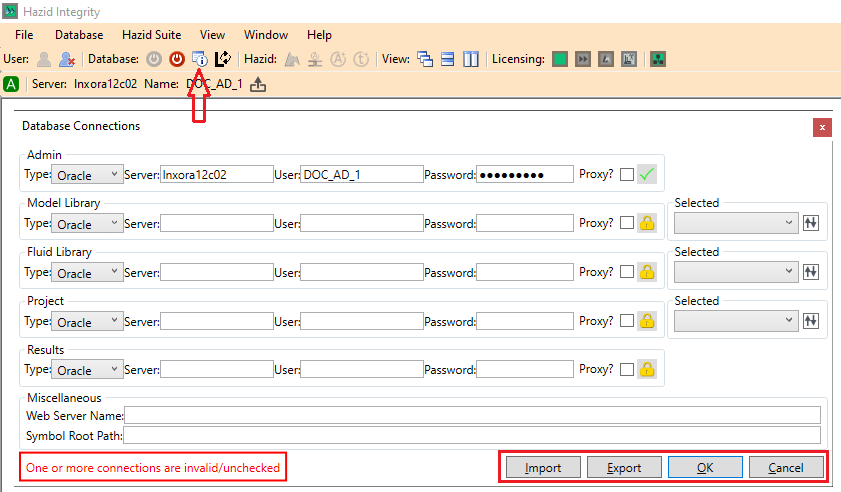
Saved database connections can be imported to the Hazid Integrity Clients using a .hdb file.
To import the database connections select button.
Browse to the location on your computer or network that the .hdb file is located.

Once selected the database connections will be available to the Hazid Integrity Client.
To Export the Database Connections to a .hdb file select button.
Save the .hdb file to your desired location.