User Login/Logout
Hazid Integrity stores a log of each user's actions for comprehensive auditing purposes and Action Management work flow. This requires every user of Hazid Integrity to log into the Hazid Framework before any actions can be conducted.
User Names and default passwords are crated in the Admin module.
The Login box will appear automatically on opening of Hazid Integrity. It can also be opened from the File Menu / Login item

or the login icon 
There are two ways to Log into Hazid Integrity, either via Windows Authentication (if it has been enabled by your administrator) or by entering the User name and password delivered to you by your administrator into the box provided.
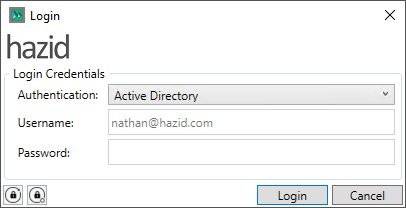
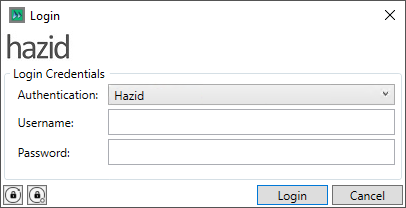
Or first Login Only via the Hazid User you will be asked to enter a password memorable to you.
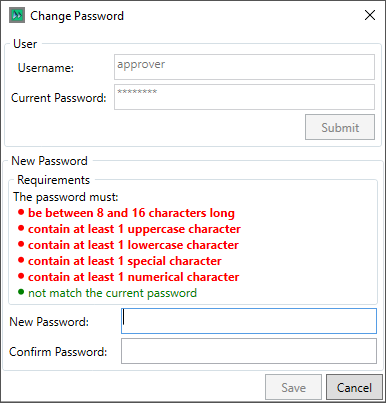
Enter and confirm your new password. You have successfully logged into Hazid Integrity and will be displayed with the Hazid Framework settings as per your User Permissions.
If you are using the Hazid Login, then you can Reset your password with the  button, this opens the reset password dialog.

Enter your Username and click on the  button to reset your password to the default password you were assigned upon first login (you will be required to change it), the
  button closes the form.
Your Hazid Login password can also be changed using the  button, this opens the change password dialog.
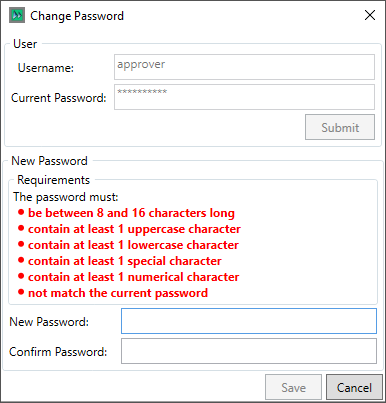
Here you need to enter your Hazid Username and Password, then enter and confirm as new password that coforms with the administrator defined password requirements. Clicking  saves your changed password and clicking closes the form without saving.
Once you have logged in, you will be able to access the Integrity Modules, based upon your permissions.
To Log Out of Hazid Integrity select the File Menu / Logout Item
Or select the Logout Icon
Hazid Integrity will automatically log you out of the system when closed normally through the window or from the File Menu / Exit Item.