Drawing Viewer
The Drawing viewer is used to view the graphics and data for imported drawings. If opened from anywhere other than a drawing itself, the user will need to select and open a drawing
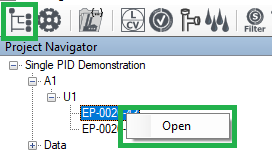
After opening a drawing in drawing viewer you will be presented with the drawing viewer layout, as shown below
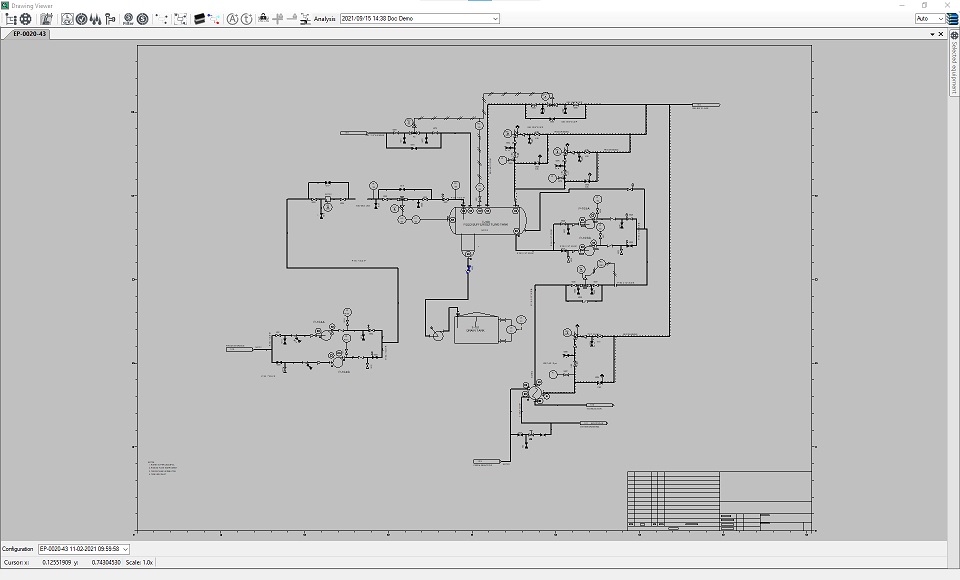
The Drawing View – This panel displays the drawing that you currently have selected.
Basic Drawing Controls
The drawing can be navigated in several different ways, the main set of drawing controls can be accessed by right clicking the drawing title tab, this opens the drawing controls menu.

There are three functions that can be carried out here:
- Fit to View – This function fits the current drawing to the size of the Drawing View panel
- Clear Highlight – This function clears any highlight (from Framework Data Viewer, Project Editor or Rule Checker) that may have been carried out on the drawing.
- Close – This function closes the currently selected drawing in Drawing Viewer.
- Clicking and dragging the drawing title tab allows you to move the drawing panel location from its default position in the center of the screen. There are several interactions that can be carried out on the drawing itself as well.
- Clicking an Item – This will select the item on the drawing and display information relating to the item in the Information Panel (if the panel is set to display that information)
- Ctrl-Click and Drag – This will zoom the drawing viewer to fit the selection that you have specified.
- Alt-Click and Drag – This will select all of the items in the area that you have specified.
- Shift-Click – This will add/remove items from a selection that you have made.
The configuration and analysis drop down lists allow you to select the configuration/analysis pair drawing that you are viewing, by selecting from the drop down menu.

The Information Panel
The information panel is where data from or relating to the drawing that is pertinent to the safety study is displayed. The information is displayed in tabs, the tabs are opened from the drawing tool bar, as described in the next section. There are several tabs that can be accessed, including Project Attributes, Select Equipment, Fluids, Safeguards, Instruments and Hazop Analysis Data.
The Drawing Viewer Tool bar
The Drawing Viewer tool bar is used to open/close sections of the drawing viewer and information panel, the tool bar is located in the top-left hand corner of the drawing viewer.

The tool bar contains the following functions:
- Open/Close Project Navigator – This opens or closes the Project Navigator
- Open/Close Selected Equipment – This opens or closes the Selected Equipment tab in the information panel
- Open/Close Project Attributes – This opens or closes the Project attributes tab in the information panel
- Open/Close Instruments – This opens or closes the Instrument data tab in the information panel
- Open/Close Safeguards – This opens or closes the Safeguards tab in the information panel
- Open/Close Fluids – This opens or closes the Fluids tab in the information panel
- Open/Close Piperun Mapping Viewer - This opens or closes the Piperun Mapping Viewer panel
- Activate/Deactivate Scenario Filter – This activates or deactivates the scenario filter
- Open/Close Scenario Viewer – This opens or closes the scenario view panel
- Clear all Highlights – This clears any highlights that are present on the currently selected drawing.
- Select From Drawing/Select from Scenario – This enables switching betweeen selection of the item to filter the safety integrity panels either from the drawing or from the filter panels themselves
- Open/Close Show/hide Layers - This open or closes the Layers tab in the information panel
- Open/Close Show/hide Display Sets - This open or closes the Display Sets tab in the information panel
- Create Action - Creates an Action on the selected item(s)
- Create Task - Creates a Task on the selected item(s)
- Enable/Disable View Sync - Turns the ability to synchronise the view/navigation between two or more similar drawings on or off
- Add to View Sync - Adds your current drawing to the synchronised viewer
- Remove from View Sync - Removes your current drawing from the synchronised viewer
- Link to SPPID - Searches in your linked SPPID site for an active drawing that matches the drawing you currently have selected, if the search finds a drawing, then that drawings is opened and linked to.
- Zoom - Allows you to select the zoom level on the drawing, in multiples between 1x and 100x
- HazOp Analysis Data - This opens or closes the HazOp Analysis Data in the Scenario View Panel